
Access invoice details, download PDF copies, and review outstanding balances in the NRDR Portal.
Quick Facts
Who can access invoices?
Corporate Account Administrator (CAA) only
What can you do?
View invoice details, check balances, and download PDF invoices.
Where are invoices located?
Corporate menu > Invoices
How to View an Invoice
- Log in to the NRDR Portal.
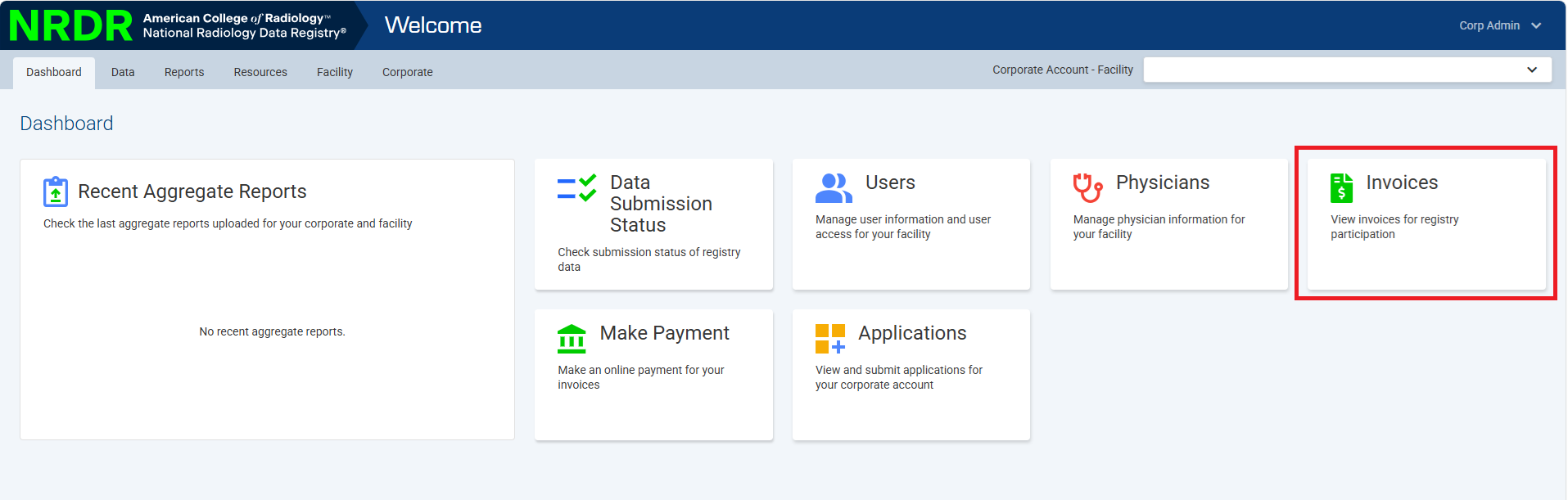
- Select Invoices dashboard.
- Select Invoices or Account Balances and Invoices.
- Locate the invoice you want to review.
Download an Invoice PDF
- Open the invoice from the invoice list.
- Select Download PDF.
- Save the file to your computer.
Insert screenshot: Invoice list page
Insert screenshot: Download PDF option
What Information Is Available?
- Invoice number
- Invoice date
- Amount due
- Payment status
- Registry participation fees
- Outstanding balances
Common Questions
I cannot see the Invoices menu.
Verify that you are logged in as the Corporate Account Administrator. Other user roles cannot access invoices.
Can I send a copy of the invoice to someone else?
Yes. Download the PDF invoice and share it with the appropriate contact within your organization.
The invoice amount looks incorrect.
Review your invoice settings, facility counts, and physician counts before requesting support.
Need Help?
If you have questions about your invoice or cannot access the invoices, contact NRDR Support.